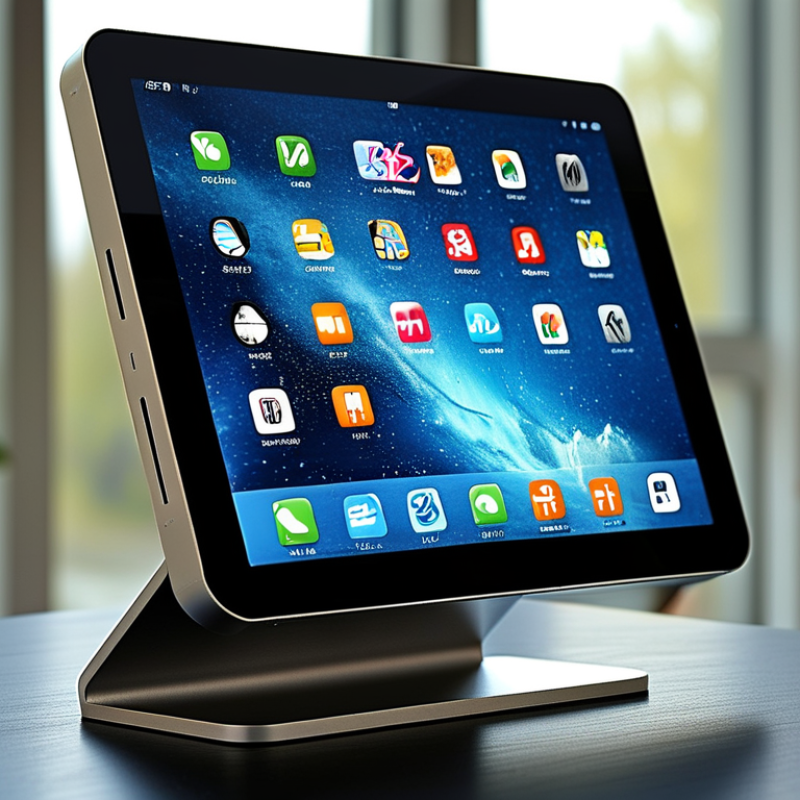
How to Choose a Touch Screen Device in 2026?

Choosing a Touch Screen Device in 2026 is no longer about screen size alone. Buyers now compare responsiveness, brightness, repairability, privacy controls, software support, and energy use. A vivid display can still feel disappointing when wet fingers cause missed taps. Small details matter.

Steve Jobs, Apple’s co-founder and a major technology industry leader, said at the 2007 iPhone launch, “We’re going to use the best pointing device in the world… our fingers.” His statement captured the appeal of direct interaction. Yet modern selection requires more than natural control. A good panel should recognize light touches, reject accidental contact, and remain readable beside a bright window.

This guide examines tablets, kiosks, monitors, point-of-sale terminals, vehicle displays, and industrial panels. It considers real use, not only laboratory specifications. You will see how refresh rate affects scrolling, why optical bonding improves outdoor visibility, and when glove support becomes essential. Connectivity, operating-system updates, warranty terms, and replacement costs also deserve attention.

No checklist is perfect. I have overlooked port placement before. A beautiful device became awkward on a crowded desk. That mistake changed how I evaluate products. The strongest choice balances comfort, reliability, security, and total ownership cost. Before buying, imagine the device in your actual environment: dusty workshop, busy counter, kitchen table, or bright classroom. Then test it with your own fingers.

How to Choose a Touch Screen Device in 2026?

Define Your Touch Screen Needs and Intended Use

Before choosing a touch screen device in 2026, define the work it must perform. Will it support warehouse scanning, classroom notes, medical documentation, field inspections, or entertainment? Each setting changes the requirements. A desk user may value a bright 10-inch display and precise stylus input. A field worker may need glove operation, wet-finger responsiveness, sunlight readability, and strong drop protection.

Market evidence supports careful planning. Fortune Business Insights estimated the global touchscreen market at about USD 84.09 billion in 2023. Its report projects roughly USD 166.12 billion by 2030. That growth does not mean every device fits every task. Touchscreen controller research from MarketsandMarkets projects continued expansion through 2029, driven by automotive, industrial, and consumer applications. The numbers show demand, not suitability.

Test the real workflow before comparing specifications. Open the forms you actually use. Tap small controls with gloves. Measure whether text remains readable beside a bright window. Check touch response after a few minutes of continuous use. Consider battery life, repair access, operating temperature, mounting options, and accessibility settings. A high resolution display can still frustrate users with poor palm rejection. A large screen can become awkward in a crowded vehicle. I have seen teams overvalue screen size and underestimate charging logistics. That mistake is easy to repeat. Record the minimum acceptable brightness, response time, storage, and protection level. Leave room for honest revision. Your first requirement list may be wrong.

Compare Screen Sizes, Display Quality, and Touch Responsiveness

How to Choose a Touch Screen Device in 2026?

Screen size should match the way you work, not just the size of your desk. An 8-inch display feels comfortable for reading, travel, and quick notes. A 12- to 14-inch screen gives more room for documents, drawing, and split-screen tasks. Larger panels improve visibility, but they add weight and may reduce battery life. Measure the device against your daily bag before buying.

Display quality depends on more than resolution. Look for clear text, balanced brightness, and stable viewing angles. A high pixel density helps small letters look sharper, especially during long reading sessions. For outdoor use, check the screen’s maximum brightness and glare control. For creative work, accurate color matters more than impressive numbers. A screen can look vivid in a store yet appear tiring after an hour.

Touch responsiveness deserves a real test. Open a web page, scroll slowly, type with both thumbs, and drag a small icon across the screen. Good touch input should feel immediate, consistent, and accurate near the edges. Haptic feedback can improve confidence, but it cannot fix delayed recognition. I once preferred a thinner device, then regretted its occasional missed taps. That experience reminded me to test real tasks, not only specifications. Fingerprints are another small issue. They can quickly reduce clarity under bright light.

Evaluate Operating Systems, Hardware, and App Compatibility

How to Choose a Touch Screen Device in 2026?

Choosing a touch-screen device in 2026 starts with its operating system, not the glass. GSMA Intelligence reported 4.7 billion mobile internet users in 2023. That figure shows how deeply people rely on mobile software. Check update policies, accessibility settings, offline behavior, and enterprise controls. Test the exact apps you use. Web access may hide missing features.

Hardware requires practical testing. Measure touch latency with a quick drawing gesture, then test brightness beside a window. Compare battery drain during video calls, stylus input, and split-screen work. IDC reported 1.24 billion smartphone shipments worldwide in 2024, but volume says little about durability. Check repair documentation, storage capacity, port selection, and fingerprint resistance. I once overvalued peak performance. Sustained heat mattered more.

App compatibility deserves a written checklist. Verify processor architecture, screen scaling, keyboard support, file formats, and security certification. Gartner’s 2024 digital workplace research highlights reliable access across devices as a major user-experience factor. Confirm support for your operating system version and management tools. Ask for a trial period. Some “universal” apps are only partly universal. That detail is easy to miss.

How to Choose a Touch Screen Device in 2026? — Evaluate Operating Systems, Hardware, and App Compatibility

A practical, brand-neutral comparison framework for selecting a touchscreen laptop, tablet, 2-in-1 computer, or industrial handheld device.

Evaluation Area Key Metric Recommended Minimum Preferred Target for 2026 How to Verify Before Purchase
Operating System Application ecosystem and workflow support Choose a desktop-class system for full desktop software, or a mobile-first system for touch-optimized apps and portability. Select an operating system that natively supports the required productivity, creative, communication, security, and industry applications. List the essential applications first and confirm their supported operating systems, editions, and processor architectures.
Operating System Updates Security patch and feature-update policy A clearly documented update policy with regular security patches and at least three years of expected support. Five or more years of security support, predictable update delivery, and the ability to defer disruptive updates. Review the device support page, update history, enterprise-management options, and end-of-support date.
Touchscreen Quality Touch accuracy, latency, and gesture support Capacitive multi-touch with reliable two-finger gestures and accurate edge-to-edge input. Responsive multi-touch, palm rejection, pressure-sensitive pen support when required, and consistent input across the display. Test scrolling, zooming, handwriting, edge gestures, drag-and-drop actions, and palm rejection in real applications.
Display Resolution, brightness, aspect ratio, and visibility At least 1920 × 1080 resolution, approximately 300 nits brightness indoors, and viewing angles suitable for shared use. A sharp resolution appropriate to the screen size, 400 nits or more for mixed indoor use, and a matte or low-reflection finish for frequent touch interaction. Check text clarity, glare, brightness uniformity, viewing angles, and color consistency under the intended lighting conditions.
Processor Responsiveness and application performance A current 64-bit multi-core processor capable of hardware virtualization and modern web, office, and video workloads. A recent processor with strong single-core responsiveness, efficient multi-core performance, and an integrated neural-processing capability when local AI features are needed. Compare independent performance tests, sustained-load results, thermal behavior, and compatibility with required software.
Memory Multitasking capacity 8 GB for basic browsing, documents, video calls, and light multitasking. 16 GB for general professional use; 32 GB or more for development, content creation, virtual machines, or large datasets. Confirm whether memory is upgradeable, soldered, shared with graphics, or available in multiple configurations.
Storage Capacity, speed, and local data handling 256 GB solid-state storage for the operating system, applications, and routine files. 512 GB or more for professional work, offline media, local AI models, and long-term use; use encrypted solid-state storage. Check actual usable capacity, storage encryption support, expansion options, and read/write performance.
Graphics and Media Video playback, external displays, and creative workloads Hardware acceleration for common modern video formats and support for at least one external display. Dedicated graphics capability or a high-performance integrated graphics processor for editing, 3D work, computer-aided design, or multiple high-resolution displays. Verify supported display outputs, maximum resolution and refresh rate, codec acceleration, and application-specific graphics requirements.
Connectivity Wireless, wired, and peripheral compatibility Current Wi-Fi, Bluetooth, USB-C data transfer, and a reliable method for connecting external storage and input devices. Modern Wi-Fi with multi-gigabit potential, Bluetooth support for current accessories, USB-C charging, and high-speed display or docking support. Confirm port bandwidth, charging protocol, dock compatibility, wireless standards, and support for required printers, scanners, or sensors.
Battery and Charging Mobility and charging convenience A battery capacity and efficiency level that can support a full work session under the manufacturer’s stated test conditions. Efficient hardware, fast USB-C charging where supported, replaceable service components when possible, and practical battery life under real workloads. Use independent web-browsing, video-playback, and productivity tests rather than relying only on advertised maximum runtime.
Pen and Accessory Support Handwriting, drawing, and precision input Compatible active pen support with stable pairing, low input delay, and basic palm rejection. High-resolution pressure sensing, tilt recognition, replaceable pen tips, magnetic or secure storage, and support for keyboard and stand accessories. Confirm the exact pen protocol, pressure levels, replacement cost, charging method, and compatibility with the intended creative applications.
App Compatibility Native, web, emulated, and streamed application support All essential applications must be available natively or through a dependable web version with the required features. Native support for critical software, offline functionality, hardware acceleration, file-format compatibility, and reliable peripheral integration. Test trial versions with real files, plug-ins, fonts, macros, cloud services, enterprise sign-in, and external hardware before purchase.
Security Device protection, identity, and data encryption Secure boot, hardware-backed key storage, screen-lock protection, automatic updates, and full-disk encryption capability. Biometric authentication, strong device-management controls, remote-wipe support, privacy controls, and independent security certification where required. Confirm encryption behavior, biometric reliability, firmware-update procedures, administrator controls, and support for organizational security policies.
Repairability Serviceability and total ownership cost Accessible service documentation, replaceable battery or storage where practical, and a reasonable warranty period. Modular components, readily available replacement parts, long-term software support, and transparent repair pricing. Review repair manuals, parts availability, warranty exclusions, battery replacement procedure, and expected service turnaround.
Ergonomics Weight, hinge, stand, and long-session comfort A stable viewing angle, comfortable touch reach, physical volume controls, and sufficient grip or stand support. A rigid hinge or adjustable stand, balanced weight, low-glare surface, comfortable keyboard option, and reduced wrist or shoulder strain. Use the device in laptop, tablet, portrait, and external-keyboard positions for at least 15 minutes in each configuration.
Best-Fit Use Case Primary workload alignment Match the device category to the dominant task: typing, media consumption, drawing, field work, or full desktop productivity. Choose a flexible 2-in-1 or professional touchscreen computer only when its extra modes and input options will be used regularly. Estimate the percentage of time spent typing, touching, writing, carrying, docking, and working offline before selecting the form factor.
Note: Minimum and target values are practical purchasing benchmarks rather than universal specifications. Actual performance depends on software workload, thermal design, display size, battery capacity, network conditions, and manufacturer support policies.

Check Durability, Accessibility, Connectivity, and Battery Life

When choosing a touch screen device in 2026, durability should be tested, not assumed. Check the screen’s scratch resistance, frame strength, and protection against dust or water. A published protection rating helps, but it does not replace real use. I look for sealed ports, firm buttons, and a case that survives repeated handling. Test it.

Accessibility can decide whether the device feels practical after several hours. Choose adjustable text size, strong contrast, voice control, screen reader support, and responsive touch targets. Test the display in bright sunlight and dim rooms. Try it with wet fingers, gloves, and reduced hand movement. Small icons may look elegant, yet they can create daily frustration. My first shortlist ignored this detail.

Connectivity should match the places where the device will work. Check modern Wi-Fi support, Bluetooth stability, optional mobile data, and a versatile wired port. Offline access is still valuable when networks fail. Battery life also needs honest testing. Compare results during video calls, navigation, streaming, and standby use. A large battery can still disappoint if the screen is bright or the device runs hot. Look for safe charging controls and, when possible, a replaceable battery. Specifications offer useful clues, but personal testing reveals uncomfortable gaps.

How to Choose a Touch Screen Device in 2026?

Use this suggested evaluation weighting to compare touch-screen devices. Durability, accessibility, connectivity, and battery life are scored as percentage priorities, with a total of 100%.

Balance Total Cost, Security, Support, and Future Upgrade Options

How to Choose a Touch Screen Device in 2026?

The lowest purchase price can hide expensive ownership problems. Calculate hardware, installation, training, energy, repairs, software, and disposal costs. A device used in a warehouse faces dust, gloves, drops, and long shifts. Ask for tested durability data, not vague marketing language. I would also check screen brightness under direct lighting. A beautiful display can become useless near a loading door.

Security should be practical and measurable. Look for encrypted storage, secure boot, automatic updates, user permissions, and remote device management. Confirm how quickly critical vulnerabilities receive patches. Test the recovery process before deployment. A locked device is not necessarily a secure device. Weak passwords, shared accounts, and unused ports can still create exposure. I have seen teams overvalue biometric access while ignoring basic update controls.

Support affects every working day. Review warranty limits, repair times, spare-part availability, and service coverage in your region. Request clear documentation and a named escalation route. Future upgrades deserve equal attention. Check whether the operating system, touch controller, battery, memory, and connection standards can be replaced or supported later. A five-year lifecycle plan may prevent a costly full replacement. Still, predictions are imperfect. Components change, and promised support can shrink. Record every commitment in the contract, then test one sample through installation, failure, repair, and redeployment.

Are you ready? Let’s make your brand fresh and amazing.

Get Started